Windows Development Tools
Xoá bớt tài khoản github hoặc tài khoản khác trong máy
Khi một ứng dụng hiện các tài khoản khác nhau và bắt xác thực
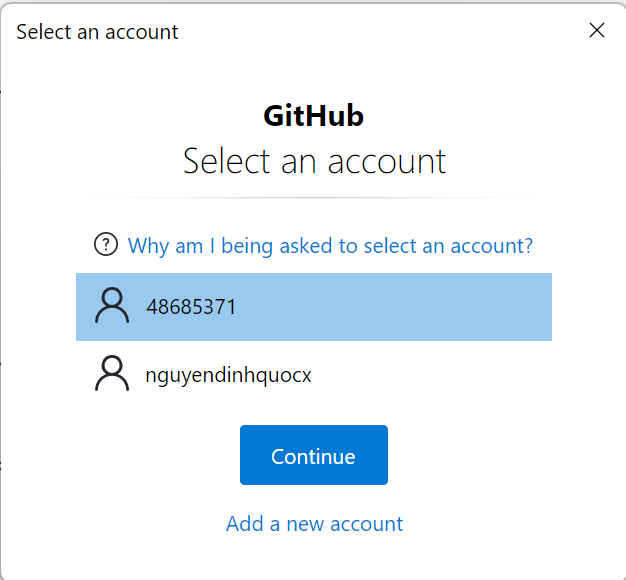
Xoá credential GitHub cũ trong Credential Manager của Windows.
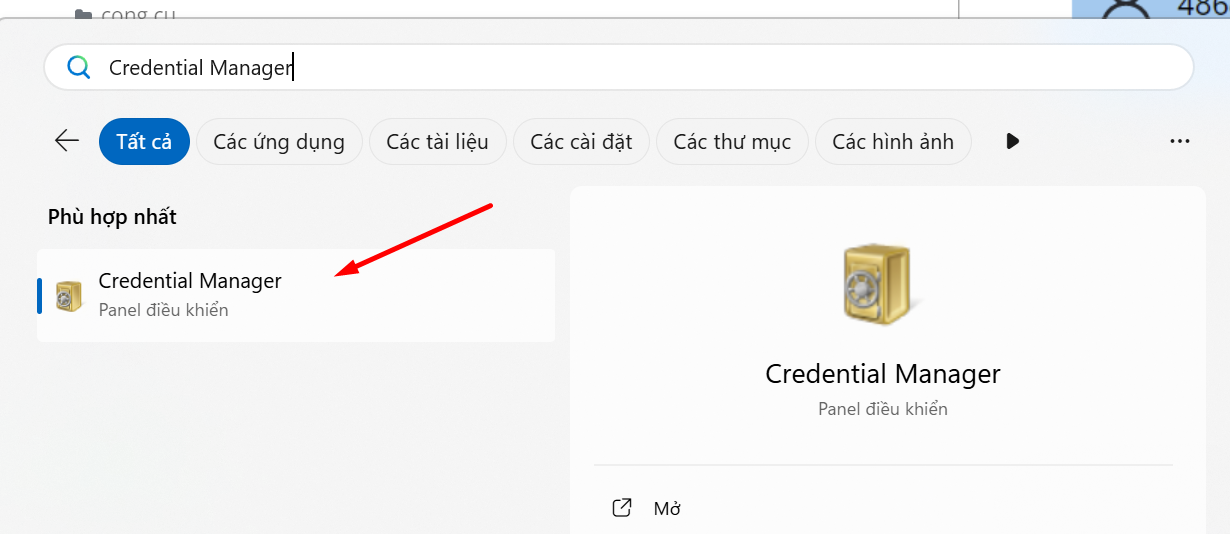
Mở
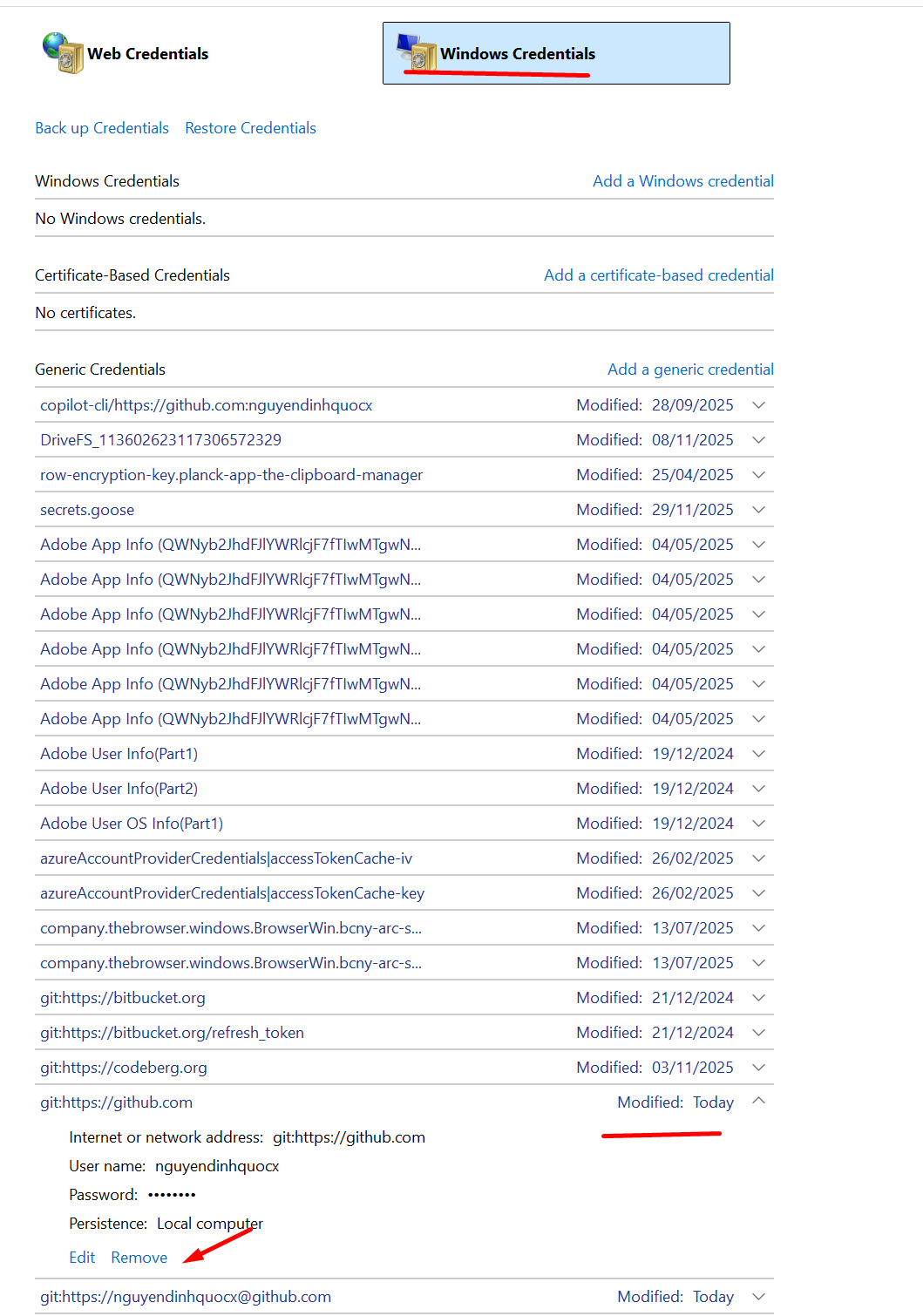
Credential Manager→ Windows Credentials → xoá mấy mục liên quan git:https://github.com hoặc GitHub.Push lại và đăng nhập lại đúng account.
Windows Development Tools
Windows Terminal Configuration
Cấu hình tự động mở 3 panes
Đường dẫn cấu hình Windows Terminal: C:\Users\quocn\AppData\Local\Packages\Microsoft.WindowsTerminal_8wekyb3d8bbwe\LocalState\settings.json
Bước 1: Mở file settings.json
- Mở Windows Terminal
- Bấm
Ctrl + ,(hoặc Settings) - Click "Open JSON file" ở góc dưới bên trái
Bước 2: Thêm cấu hình vào phần "actions"
Tìm phần "actions": [...] trong file JSON và thêm action này:
{
    "command": {
        "action": "multipleActions",
        "actions": [
            {
                "action": "newTab",
                "commandline": "powershell.exe -NoExit -Command \"cd D:\\pcloud; claude --permission-mode dontAsk\""
            },
            {
                "action": "splitPane",
                "split": "right",
                "size": 0.6667,
                "commandline": "powershell.exe -NoExit -Command \"cd D:\\pcloud; goose\""
            },
            {
                "action": "splitPane",
                "split": "right",
                "size": 0.5,
                "commandline": "powershell.exe -NoExit -Command \"cd D:\\pcloud; opencode\""
            }
        ]
    },
    "id": "User.open3agents"
}
Thêm keybinding vào phần "keybindings": [...]:
{
    "id": "User.open3agents",
    "keys": "ctrl+shift+3"
}
Bước 3: Cấu hình tự động maximize và bỏ confirm close
Thêm vào phần config chính (cùng cấp với "defaultProfile"):
"launchMode": "maximized",
"confirmCloseAllTabs": false
Giải thích:
launchMode: "maximized": Tự động full màn hình khi mở Windows TerminalconfirmCloseAllTabs: false: Bỏ thông báo xác nhận khi đóng tabs, nhấn X là đóng ngay
PowerShell Commands
Di chuyển file
Di chuyển file này sang file kia
move-item "url a" "url b"
ví dụ: move-item "D:\outputs\file_cleaned.md" "D:\pcloud\workspace\obsidian\00\filex.md"
Di chuyển thư mục
Move-Item "D:\data\project" "D:\backup\project"
Ghi đè
Move-Item "D:\data\file.txt" "D:\backup\file.txt" -Force
Xem file và nội dung
- Xem file:
ls - Xem nội dung:
get-content file.txt
Windows Task Scheduler
Bản chất
Windows Task Scheduler là dịch vụ có sẵn trong Windows cho phép chạy tự động các chương trình theo lịch:
- Chạy script/program vào giờ cụ thể
- Lặp lại theo tần suất (daily, weekly, monthly, etc.)
- Chạy ngay khi máy khởi động
- Chạy khi user logon
- Trigger dựa trên event (log, email, etc.)
Key point: Task chạy độc lập với app - ngay cả khi tắt app, task vẫn chạy theo lịch.
Cách setup bằng Python
Flow:
1. Them task vao available_tasks trong scheduler.py
2. Tao script Python tuong ung trong toolkit_modules/scripts/
3. Chay app -> Menu 12 -> Tao task moi
4. Chon tan suat + gio chay
5. Xac nhan -> Task duoc tao trong Windows
Ví dụ thêm task mới:
Trong scheduler.py, thêm vào available_tasks:
{
    "id": "backup_obsidian",
    "name": "Backup Obsidian",
    "script": "backup_obsidian.py",
    "description": "Tu dong backup vault Obsidian hang ngay",
    "task_name": "ObsidianBackupDaily",
},
Tạo file toolkit_modules/scripts/backup_obsidian.py:
#!/usr/bin/env python3
# -*- coding: utf-8 -*-
"""Backup Obsidian vault"""

import shutil
from pathlib import Path
from datetime import datetime

source = Path(r"D:\pcloud\workspace\obsidian")
backup = Path(r"D:\Backups\Obsidian")
timestamp = datetime.now().strftime("%Y%m%d_%H%M%S")

backup.mkdir(exist_ok=True)
shutil.copytree(source, backup / f"vault_{timestamp}")
Cách setup bằng schtasks command line
Cú pháp cơ bản:
schtasks /create /tn "TaskName" /tr "command" /sc frequency /st time
Ví dụ:
:: Chay script Python hang ngay luc 8:00 sang
schtasks /create /tn "DailyBackup" /tr "python C:\Scripts\backup.py" /sc daily /st 08:00

:: Chay hang tuan vao Monday luc 9:00
schtasks /create /tn "WeeklyReport" /tr "python C:\Scripts\report.py" /sc weekly /d MON /st 09:00

:: Chay khi user logon
schtasks /create /tn "OnLogonTask" /tr "notepad.exe" /sc onlogon

:: Chay khi khoi dong may (dang Nha cung cap - Admin)
schtasks /create /tn "StartupTask" /tr "C:\Scripts\startup.bat" /sc onstart
Các parameter quan trọng:
| Param | Meaning | Example |
|---|---|---|
/tn | Task Name | /tn "MyTask" |
/tr | Task Run (command) | /tr "python script.py" |
/sc | Schedule type | /sc daily |
/st | Start time | /st 08:00 |
/d | Days (cho weekly) | /d MON,WED,FRI |
/f | Force overwrite | /f |
Schedule types:
/sc daily- Hang ngay/sc weekly- Hang tuan/sc monthly- Hang thang/sc once- 1 lan duy nhat/sc onlogon- Khi user logon/sc onstart- Khi khoi dong may/sc onidle- Khi may idle
Xem task:
:: Xem tat ca task
schtasks

:: Xem chi tiet 1 task
schtasks /query /tn "TaskName" /v
Xoa task:
schtasks /delete /tn "TaskName" /f
Chay thu ngay:
schtasks /run /tn "TaskName"
Ứng dụng thực tế
Automation cá nhân:
- Gửi email báo cáo hàng ngày (habits email)
- Backup dữ liệu tự động
- Sync thư mục vào pCloud/Drive
- Tải file tự động (download video, podcast)
- Clean temporary files
Development workflow:
- Chạy test hàng đêm
- Deploy code tự động
- Restart server nếu crash
- Generate report từ database
Command cheat sheet
:: Create
schtasks /create /tn "Name" /tr "command" /sc daily /st 08:00 /f

:: Query
schtasks /query /tn "Name" /v
schtasks /query /fo csv

:: Run now
schtasks /run /tn "Name"

:: End running task
schtasks /end /tn "Name"

:: Delete
schtasks /delete /tn "Name" /f

:: Enable/Disable
schtasks /change /tn "Name" /enable
schtasks /change /tn "Name" /disable